How to Spot Phishing Emails: A Practical Checklist (With Real Examples)
Phishing emails aren’t just “obvious scams” anymore. Many look professional, copy real branding styles, and create urgency to make you act before you think. The goal is usually the same: steal credentials, money, or access.
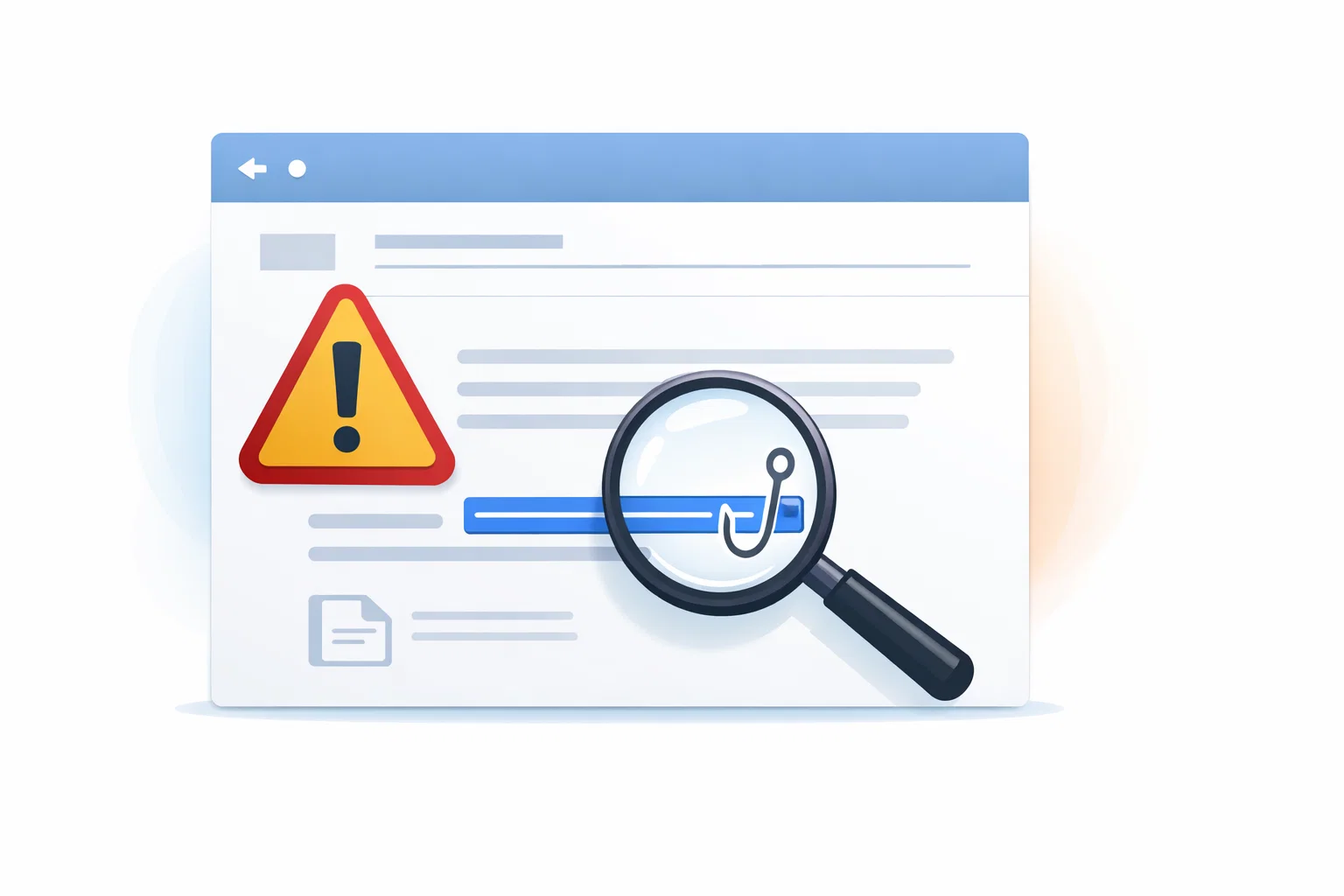
1) The 30‑second phishing checklist
Before you click anything, run through these checks:
- Sender domain: does it match the real company domain exactly?
- Urgency: “act now or lose access” is a common manipulation tactic.
- Links: hover and read the destination carefully.
- Attachments: unexpected files are high risk.
- Request type: asking for passwords, payment info, or “verification” is suspicious.
2) Sender tricks: display name vs real address
Attackers often use a trustworthy display name while hiding a weird address behind it.
- Look for look‑alike domains (extra letters, swapped characters, odd TLDs).
- Be careful with “support‑alerts”, “billing‑team”, or random subdomains.
- Check if the domain matches the company’s official site.
3) The urgency trap
Phishing tries to reduce your thinking time:
- “Your account will be closed today.”
- “Unusual login—verify immediately.”
- “Payment failed—update card now.”
Legitimate companies do send alerts, but safe alerts usually allow you to log in normally without forcing a single “click this link now” path.
4) Link inspection: what to look for
- Short links: they hide the real destination.
- Redirect chains: a “safe-looking” link that quickly forwards elsewhere.
- Domain mismatch: “company‑support” that does not belong to the company.
Safe habit: open a new tab and go to the official site directly instead of using the email link.
5) Attachment handling: “unexpected file = risky file”
Common dangerous formats include macro‑enabled documents and executables. If a message pressures you to open an attachment quickly, treat it as high risk.
- Scan with security software.
- Don’t enable macros.
- Verify the sender independently.
6) What to do if you already clicked
- Stop: close the page and don’t enter credentials.
- Change password on the real site (open it directly).
- Enable 2FA/passkeys if available.
- Review recent sessions and revoke unknown devices.
- Monitor payment methods if you entered financial data.
7) How disposable inboxes help (responsibly)
Disposable inboxes can reduce spam and limit where your primary email identity is stored. Use them for low‑risk sign‑ups, trials, and testing. Get a fresh inbox here: TempMailbox.
Reminder: never rely on a temporary inbox for critical identity or banking accounts.